
- Login to your Hughes Solutions control panel and either add a seat or convert an existing seat. (You cannot currently use the same seat as a live handset) If the Softphone Tab is greyed out then enable it under the ‘User Manager’ menu (require
 s administrator privileges).
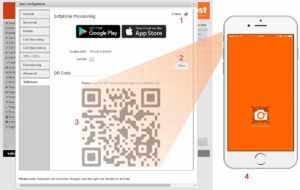
 - Navigate to ‘Softphone’ and select ‘enable’ (See illustration below)
- Click ‘Save’ to confirm the changes (The control panel will show a QR code to use with the App and the device will auto setup)
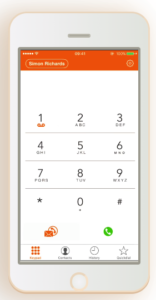
- Download and launch the Softphone app using the badges at or search via the Apple and Google app stores.
- Launch the app on the smartphone or tablet and tap the QR code button to launch the QR reader.
- Point the phone or device camera at the QR code and the app will indicate that it has successfully read the QR code.
June 2, 2020
Categories:

Leave a Reply